

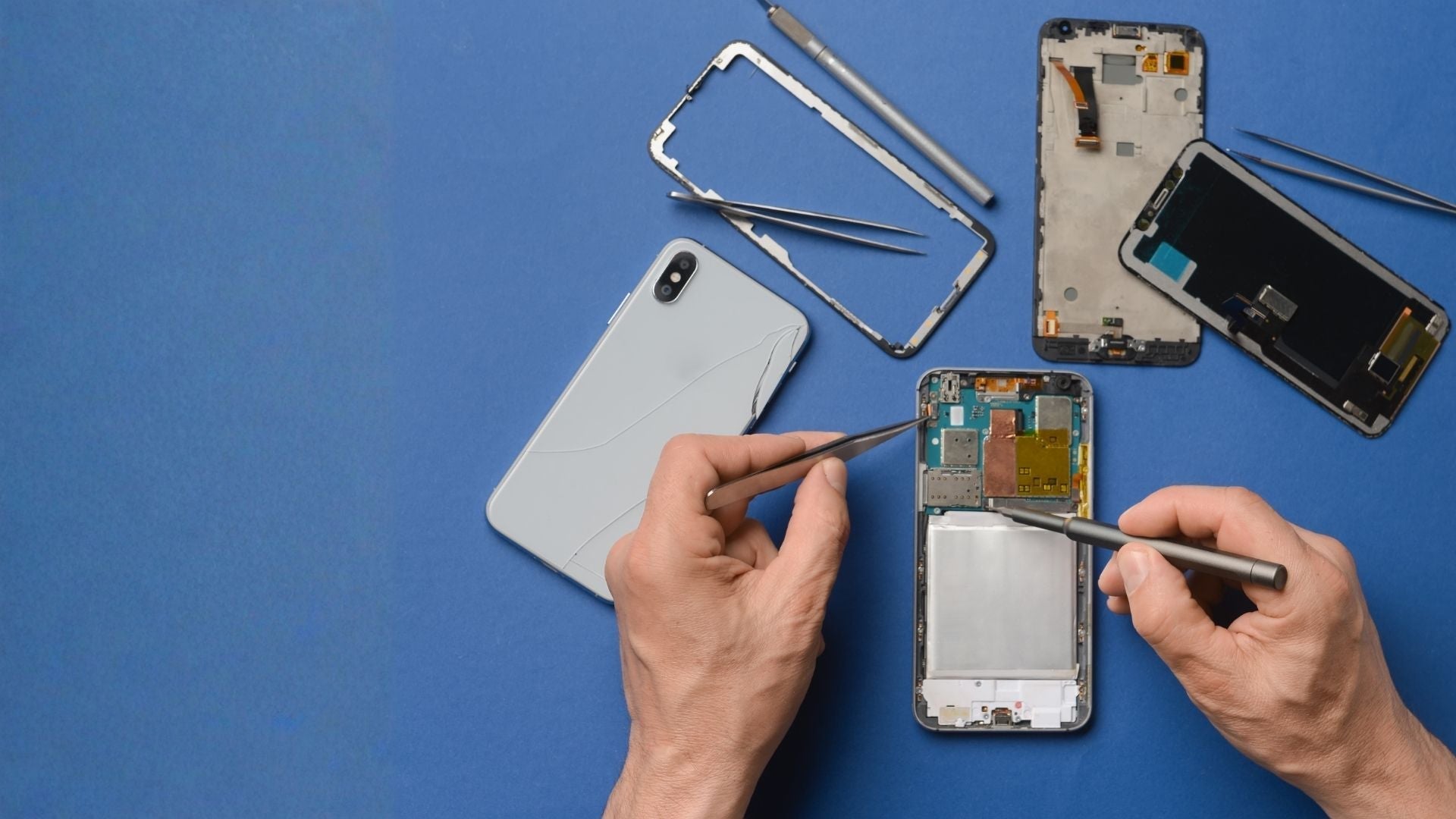


Few things are more frustrating than pressing your iPhone's power button and getting no response. Whether your screen is completely black, your device is stuck on the Apple logo, or it won't charge at all, it doesn't always mean your iPhone is beyond repair.
Many power-related issues are caused by something relatively simple, such as a drained battery, a software glitch, or a faulty charging cable. In many cases, you can get your iPhone working again by following a few straightforward troubleshooting steps.
In this guide, you'll learn:
- Why your iPhone won't turn on
- The first things you should check before booking a repair
- Common iPhone problems and how to fix them
- When it's time to seek professional help
- Tips to help prevent future issues
Whether you own an older iPhone XR or iPhone 11, or a newer iPhone 15 or iPhone 16, the advice in this guide applies to most recent iPhone models.
Related reading: If your iPhone stopped working after an accidental drop, our guide on What to Do When Your Apple Phone Screen Cracks explains how impact damage can affect your device and what your repair options are.
Why Won't My iPhone Turn On?
There are several reasons why an iPhone may stop responding, and not all of them require a repair. Understanding the cause can help you choose the right solution and avoid unnecessary expense.
Let's look at the most common reasons.
Battery Problems
A worn or completely discharged battery is one of the most common reasons an iPhone won't switch on.
As lithium-ion batteries age, they gradually lose their ability to hold a charge. Eventually, your iPhone may begin shutting down unexpectedly, restarting at random, or refusing to turn on altogether.
This is especially common on devices that have been used daily for several years, such as the iPhone XR, iPhone 11, or iPhone SE (2020), although battery wear affects every iPhone over time.
Need a new battery? Our iPhone Battery Replacement service can restore battery life and improve day-to-day performance if your battery health has significantly declined.
Related reading: Learn how to spot the warning signs in our guide to How to Tell If Your iPhone Battery Needs Replacing.
Charging Problems
Sometimes the problem isn't your iPhone at all, it's simply not receiving power.
A damaged charging cable, faulty plug adapter, worn charging port, or compacted pocket lint can all prevent your device from charging correctly.
💡 Helpful Tip
If possible, test your iPhone using:
- A different charging cable
- Another wall adapter
- A different wall socket
- Wireless charging (if your model supports it)
If your phone charges normally with different accessories, you've likely found the problem without needing a repair.
If changing the cable and adapter doesn't solve the problem, your charging port may need professional attention. Our iPhone Charging Port Repair service can help diagnose the issue.
Related reading: Our guide on Why Your iPhone Won't Charge explains the most common charging problems and how to fix them.
Software Issues
Not every power issue is caused by faulty hardware.
Software problems, failed iOS updates, or app crashes can sometimes cause an iPhone to freeze on a black screen or become stuck on the Apple logo during startup.
Fortunately, these issues can often be resolved without replacing any parts by performing a force restart or using Apple's built-in recovery tools.
Physical or Water Damage
If your iPhone stopped working after being dropped or exposed to liquid, internal damage could be preventing it from turning on.
While a cracked screen is easy to spot, problems such as damaged internal connectors, battery faults, or corrosion caused by liquid exposure aren't always visible from the outside.
If your iPhone was dropped or exposed to liquid and no longer turns on, our iPhone Repair specialists can carry out a full diagnostic to identify the fault.
Related reading: If your iPhone has been exposed to liquid, read our guide on What to Do If Your iPhone Gets Wet to minimise the risk of further damage.
First Things to Try Before Booking a Repair
Before assuming your iPhone needs professional repair, work through these simple troubleshooting steps. Many common issues can be resolved in just a few minutes.
1. Leave Your iPhone Charging for at Least 30 Minutes
If your battery has been completely drained, it may take several minutes before anything appears on the screen.
Connect your iPhone to a reliable charger and leave it uninterrupted for around 30 minutes.
If nothing happens:
- Try another charging cable.
- Use a different wall adapter.
- Plug directly into a wall socket rather than a laptop or power bank.
- Test wireless charging if your iPhone supports it.
2. Perform a Force Restart
A force restart can resolve many software-related issues without deleting your apps, photos, or personal data.
iPhone 8 and newer
- Quickly press and release Volume Up.
- Quickly press and release Volume Down.
- Press and hold the Side Button until the Apple logo appears.
iPhone 7 and iPhone 7 Plus
Press and hold the Side Button and Volume Down button together until the Apple logo appears.
iPhone 6s, iPhone SE (1st generation) and earlier
Press and hold both the Home Button and Power Button until the Apple logo appears.
3. Inspect Your iPhone Carefully
Take a closer look at your device for signs of damage.
Check for:
- Cracked or lifting screen
- Bent frame
- Swollen battery
- Liquid inside the camera lenses
- Damaged charging port
- Loose buttons
These signs can provide valuable clues about why your iPhone isn't turning on.
⚠️ Warning
If you notice the screen lifting away from the frame, stop using the device immediately. This may indicate a swollen battery, which should be replaced by a qualified technician as soon as possible.
4. Check the Charging Port
The charging port is often overlooked but is a surprisingly common cause of charging problems.
Over time, dust, lint, and pocket debris can become compacted inside the port, preventing the charging cable from connecting properly.
Use a torch to inspect the port.
If you can see debris:
- Use a soft, non-metallic tool, such as a wooden toothpick, to remove it gently.
- Never use metal objects, as they can damage the charging contacts.

Common iPhone Problems and How to Fix Them
Even if your iPhone won't turn on, the symptoms it shows can often point to the underlying problem. Whether it's stuck on the Apple logo, refusing to charge, or draining battery unusually quickly, understanding the issue can help you decide whether it's something you can fix yourself or whether professional repair is the better option.
Let's look at some of the most common iPhone problems and what you can do about them.
iPhone Stuck on the Apple Logo
If your iPhone gets stuck on the Apple logo during startup and never reaches the Home Screen, it's usually a software issue rather than a hardware failure.
This can happen after:
- An interrupted iOS update
- A failed restore or data transfer
- Corrupted system files
- Running out of storage during an update
Start by performing a force restart. If that doesn't work, connect your iPhone to a Mac or Windows PC and use Recovery Mode to update iOS. Choosing Update attempts to reinstall the operating system without erasing your personal data.
If Recovery Mode doesn't resolve the issue, the device may need a full restore or professional diagnostics to rule out hardware faults.
Related reading: If your iPhone became unresponsive after updating iOS, check out our guide on How to Fix an iPhone Frozen After an Update.
iPhone Screen Not Responding
A frozen or unresponsive screen doesn't always mean your iPhone is switched off. In many cases, the device is still running in the background but the display or touchscreen has stopped responding.
Before assuming the screen needs replacing:
- Clean the display with a soft microfibre cloth.
- Remove any damaged or poorly fitted screen protector.
- Perform a force restart.
- Check whether Siri responds when you press the Side Button.
If your iPhone still receives calls or notifications but the touchscreen doesn't respond, the display assembly may have been damaged, particularly if the phone has recently been dropped.
If the display has been damaged, our iPhone Screen Repair service can restore touch functionality and screen clarity.
iPhone Won't Charge
Charging issues are one of the most common reasons people think their iPhone has stopped working.
In many cases, the problem isn't the phone itself but the accessories being used to charge it.
Before arranging a repair, check the following:
- Try a different charging cable.
- Use another wall adapter.
- Plug into a different wall socket.
- Inspect the charging port for lint or debris.
- Restart your iPhone after connecting it to power.
If your iPhone supports wireless charging, test that as well. If wireless charging works but wired charging doesn't, the charging port may need cleaning or repairing.
If your device still won't charge after trying known-working accessories, the battery or charging circuit may require professional attention.
Battery Draining Too Quickly
If your iPhone turns on but struggles to last through the day, the battery may simply be showing its age.
Battery life naturally declines over time, but excessive battery drain can also be caused by:
- Background apps constantly refreshing
- High screen brightness
- Poor mobile signal
- Outdated iOS software
- Heavy use of GPS or location services
To check your battery's condition, go to:
Settings > Battery > Battery Health & Charging
If the Maximum Capacity has fallen below 80%, replacing the battery is often the most effective way to restore performance and improve battery life.
If battery life continues to decline despite these changes, an iPhone Battery Replacement is often the best long-term solution.
Camera Not Working
A camera that won't open, produces blurry photos, or crashes unexpectedly can be frustrating, especially if you rely on your iPhone every day.
Before assuming the camera has failed:
- Close and reopen the Camera app.
- Restart your iPhone.
- Install any available iOS updates.
- Clean the camera lenses with a microfibre cloth.
- Remove any phone case that's obstructing the camera.
If only one camera (front or rear) is affected, the issue may be with the camera module itself. If both cameras stop working at the same time, it's more likely to be a software issue.
If the problem started after dropping your iPhone, internal damage is also a possibility.
iPhone Overheating
It's normal for an iPhone to become warm while charging, downloading updates, or running demanding apps. However, if it frequently becomes too hot to use, it's worth investigating the cause.
Common reasons include:
- Running multiple resource-intensive apps
- Extended gaming sessions
- High outdoor temperatures
- Faulty charging accessories
- Background software issues
To help your iPhone cool down:
- Close unused apps.
- Remove the phone case temporarily.
- Move it out of direct sunlight.
- Avoid charging it until it has cooled down.
If overheating happens regularly without an obvious reason, or your iPhone displays a temperature warning, it should be inspected by a technician to rule out battery or hardware faults.
When Basic Troubleshooting Isn't Enough
If you've worked through these troubleshooting steps and your iPhone still won't turn on, it's unlikely that continuing to restart or recharge it will solve the problem.
Persistent issues can point to faults such as:
- A failing battery
- A damaged charging port
- Display failure
- Logic board damage
- Liquid damage
- Internal component failure
At this stage, a professional diagnosis is often the quickest way to identify the fault and avoid replacing parts unnecessarily.
What to Do If Your iPhone Has Water Damage
Accidentally dropping your iPhone in water can be stressful, but acting quickly can reduce the risk of permanent damage. Although newer iPhone models offer water resistance, they're not waterproof, and that protection can weaken over time due to everyday wear, accidental drops, or previous repairs.
Turn Your iPhone Off Immediately
If your iPhone is still switched on after coming into contact with water, turn it off as soon as possible. Keeping it powered on increases the risk of short circuits, which can damage internal components.
Remove any accessories, such as your charging cable, SIM tray (where applicable), and phone case, then gently dry the outside of the device using a soft, lint-free cloth.
Avoid Common Mistakes
One of the biggest myths is that placing an iPhone in rice will fix water damage. In reality, rice does little to remove moisture from inside the device and may introduce dust or starch particles into the charging port.
It's also important to avoid:
- Charging the device immediately
- Using a hairdryer or direct heat
- Shaking the phone to remove water
- Pressing buttons repeatedly
Allow the phone to dry naturally in a well-ventilated area before attempting to charge or power it on.
Related reading: Learn more in our guide on What to Do If Your iPhone Gets Wet, where we cover immediate steps, common myths, and when professional cleaning is recommended.
Recovery Mode vs DFU Mode
If your iPhone won't start because of a software issue, Apple's recovery tools may help.
Recovery Mode
Recovery Mode allows you to reinstall or update iOS when your iPhone won't boot normally. It's often the best option if your device is stuck on the Apple logo, trapped in a restart loop, or has experienced a failed software update.
Whenever possible, choose Update before Restore, as updating attempts to reinstall iOS without removing your personal data.
DFU Mode
Device Firmware Update (DFU) Mode is a more advanced recovery option that reinstalls both the firmware and operating system.
Because it completely restores the device, DFU Mode should only be used if Recovery Mode doesn't resolve the issue or if you're following Apple's official troubleshooting guidance.
If you're unsure, it's safer to seek professional advice before attempting a DFU restore.
Repair or Replace Your iPhone?
When an iPhone stops working, many people immediately think about buying a new one. However, repairing your current device is often the more practical and cost-effective option.
A professional repair may be worthwhile if:
- The screen is cracked but the phone still works.
- The battery no longer holds a charge.
- The charging port has stopped working.
- The camera or speaker has developed a fault.
- The device is only a few years old.
Replacing an iPhone usually makes more sense if the repair cost is close to the value of the device or if there are multiple major hardware failures.
A professional diagnostic can help you understand the cause of the problem and whether repair is the most economical solution.
Why Choose ImFixed for iPhone Repairs?
Sometimes, troubleshooting at home isn't enough. If your iPhone still won't turn on or you've identified a hardware fault, professional repair can get your device back up and running quickly.
At ImFixed, we repair a wide range of iPhone issues, including:
- Screen replacements
- Battery replacements
- Charging port repairs
- Camera repairs
- Speaker and microphone repairs
- Water damage diagnostics
- Software troubleshooting
- Data recovery (where possible)
We repair everything from older iPhone models through to the latest devices using high-quality replacement parts and experienced technicians.
If you're based in Manchester, Bolton, Bury, Wigan, or the surrounding areas, our team also offers convenient call-out repairs for many common issues.
Need help? If you've tried the troubleshooting steps in this guide without success, our iPhone Repair Service can diagnose the problem and recommend the most suitable repair.

Tips to Keep Your iPhone Running Smoothly
While some faults are unavoidable, a few simple habits can help extend the life of your iPhone.
- Keep iOS updated to benefit from the latest security and performance improvements.
- Use high-quality or certified charging accessories.
- Avoid letting your battery regularly drain to 0%.
- Keep your charging port clean and free from dust.
- Use a protective case to reduce damage from accidental drops.
- Back up your data regularly using iCloud or your computer.
- Replace an ageing battery before it starts affecting performance.
Looking after your device can reduce the likelihood of unexpected problems and help it perform reliably for longer.
Conclusion
If your iPhone won't turn on, it doesn't necessarily mean it's beyond repair. Many common issues, from charging problems to software glitches, can be resolved with a few simple troubleshooting steps.
By identifying the symptoms, checking the basics, and understanding when professional repair is needed, you can often save time, money, and unnecessary frustration.
If you've worked through this guide and your iPhone still isn't responding, don't keep guessing. A professional diagnosis can identify the fault quickly and help you decide whether a repair is the best option.
Frequently Asked Questions
Why won't my iPhone turn on even after charging?
This could be caused by a completely drained battery, a faulty charging cable or adapter, a blocked charging port, software issues, or internal hardware damage. Start by trying a different charger and performing a force restart before considering professional repair.
H3: Will I lose my data if my iPhone won't turn on?
Not necessarily. If the issue is caused by the battery, display, or charging port, your data is usually unaffected. However, software restores and severe hardware failures may result in data loss if no backup is available.
Can a dead iPhone battery be replaced?
Yes. If the battery has reached the end of its lifespan, replacing it can restore normal performance and improve battery life.
How long does an iPhone repair take?
Many common repairs, such as battery or screen replacements, can often be completed on the same day. More complex faults, including liquid damage or logic board repairs, may take longer depending on the diagnosis.
Is it worth repairing an older iPhone?
In many cases, yes. If the repair cost is reasonable and the device still meets your needs, repairing it can be significantly more affordable than buying a new phone.
Can water-damaged iPhones be repaired?
It depends on the extent of the damage and how quickly the device is treated. Prompt professional cleaning and diagnosis can improve the chances of a successful repair.
Share:
How to Find the Best Mobile Phone Repairs Company
All About the Latest iPhone X and iPhone Accessories